

Macros
Macros are an incredibly useful thing. When it comes to what macros we will be using, they are very simple scripts that perform actions either to specific timing for better consistency than a human can manage or making tasks that require multiple keystrokes only need one or 2.
I have written and tested with 9 separate ones here, all very simple, all very useful.

Sadly, if it is possible to use macros on a console in this manner, it is far beyond me, so this will be focusing on PC only for this section.
There are also 2 types of programs we will be using, the first is a brand-specific macro program that would come with your mouse or keyboard, such as Razer Synapse.
The second is a universal program called Auto Hot Keys, Auto Hot Keys can be used by pretty much anyone with a PC, so if you don’t have a fancy keyboard or mouse, I have you covered.
The first 3 can be done with no issue on a brand designed macro program, the Auto Hot Keys way works the same just requiring you to write the script, but I’ve written the scripts for all of these
and have made them available for download from my website, which is linked in the pinned comment.
I’ll also be adding downloads for Razer Synapse and hopefully Corsair, Logitech and any others that I can get my hands on from very trusted sources that you should be able to import into yours.
The first is Adjacency Glitching.
This is a 2 step macro, so in your software, you need to record the ‘Next’ key down (this is ‘E’ on PC to cycle to the next item in the menu), followed by Left Mouse Button down
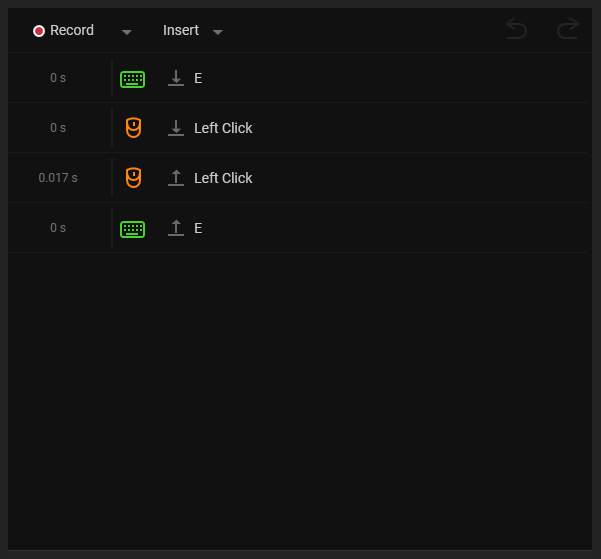
Wire Glitching is a little different.
Wire Glitching & Reverse Wire Glitching both use the same macro just with a different starting point.
You simply start on the wire to Wire Glitch or the object to Reverse Wire Glitch.
This key combo involves pressing the button to go into and out of the wire menu while simultaneously pressing the button/key to build.

In the Synapse software, both the Adjacency and Wire Glitch Macros work almost perfectly, near 100% consistent building, Auto Hot Keys, however, is a tad janky, I’m not sure why, but it is not so consistent and will fail often, but even with that failure rate, the Wire Glitch especially is still far more convenient with Auto Hot Keys than manually.
If you are very adept at the Adjacency Glitching and do it perfect nearly every time, then you’ll likely want to continue manual over Auto Hot Keys, but there are still many other beneficial scripts that make it worth using.
The next 2 are Scroll Wheel Boosters.
These essentially increase the speed you scroll your mouse wheel to the maximum that the game will allow.
As far as I know, the brand macro software for some reason doesn’t track the mouse wheel when recording so there isn’t one I can easily guide you through but I have added it to the Auto Hot Keys scripts.
Then the Final 4 are ones that can be done in the brand macro software, but I would (for most people) recommend using them via auto hotkeys as the activation is far more seamless.
These are repeater scripts for your W, A, S and D keys and work far more seamlessly than if bound to a single macro key.
If you are using a brand macro program, you are likely assigning these macros to run upon pressing a specific dedicated macro key.
You can usually have this macro only assigned to the key or just only work within specific programs, the Auto Hot Key scripts I have set to only work within No Man’s Sky.
The main difference is that while you can assign Auto Hot Key scripts to a specific button, you can also use button combinations, which is what I have done here.
By default, the Adjacency Glitch Left is Left Shift, Right Shift and G, with the Right Adjacency being Left Shift Right Shift and H.
I originally just had these as Left Shift G and Left Shift H, but I realised pretty quickly that this would be very damaging when naming planets or systems as capitalising a G or H would initiate the macro and cause the name to upload.
Wire Glitch is by default initiated by Left Shift, Right Shift and J
The rest is a lot more streamlined and essentially turn the Left Shift key into a sort of speed booster.
Holding down the Left Shift key will allow for the scroll wheel up and down speed boost to happen, if the Left Shift key isn’t held down as you scroll, you will scroll at the normal pace of your mouse.
This is also how the W, A, S and D repeater are initiated, though there is a safety feature.
Essentially for these, you press and hold Left Shift and then press and hold either of the W, A, S, D keys, once the macro has been initiated, you don’t need to continue holding shift, just the letter key.
This macro will first fire once with a capitalisation of the key, this is in case you do this combination for that purpose.
It will then wait 500 milliseconds, which is half a second and then start firing the Key at a rate of 35 per second.
This is to mimic the speed up event that happens when you increase the amount of something you are buying, except it applies it to the keys in all situations like when splitting a stack or increasing the number of items you wish to craft.
Just the D key speed up will turn a 10-minute crafting session into less than 2 minutes, so for anyone farming, this is a huge time saver.
You can set an auto crafting macro to a specific amount easily using any of the software, but it’s a great use with the brand macro software, just have the d key down, then a delay of 17 milliseconds, D key up and then another delay, set the macro to repeat 63 times in the case of this farm we are building, or if you wish, have it repeat while the button is being pressed.
It is a simple application I wrote which will compile a custom script file for use with Auto Hot Keys that only has the specific macros you want in it and then serves it up for you to download.
I will be releasing a standalone video on macros using this section and a greater explanation of how to script in Auto Hot Keys.
With the release of that video, I am planning to add the ability to choose your key combos for firing these macros as you download it from the app
Hiya Bearded Brummage
I hope you are well there in the Burnt-Mingy-Ham LOL.
Thanks so much for the macros, the adjacency macro works 99.9% of the time and has saved me a ton of brain cells and improved my build by a zillion to 1.
But….always a “but” right, but, the wire glitch macro doesn’t work at all. I tried slowing the FPS down in case it was that–> nada , tried slowing my mouse speed down too —> nada
I spent at least 8 hours in game on a new base trying it over and over again, googled stuff, watched videos and I’m pretty certain I’m ok understanding what needs to be done, “but” it still does not work.
Heres what I do.
I find the item I want to glitch in. Make sure it is green lit. Hit my preset macro key {Coutesy of the Bearded Brummage Mr. Xaine} grab a wire connection – move wire to preferred build location and after 6 seconds I have a nice wire but nothing nada nix no-thingggggg builds at all.
Additionally after failing to build anything but a humble red wire, I tried varieties just in case there was some step taken that had not been mentioned, like: keeping the preset macro key held the whole time, or I’d try holding CTRL the whole time, and lastly following Beeblebums directions with the basic wire glitch too and guess what? NADA nothing is working!!!!.
I have less hair now, I think I aged to stressing myself trying at least to get one wire glitch to work, but its not my luck. Fail.
I’m using a PC mouse-KB combo. The macro is written and edited the same as yours. The macros are allocated to keys that are not in-game active (L-adjacency fixed to “[” key and the R-adjacency fixed to “}” key. The Wire glitch is fixed to right-ALT key, it used to be fixed to the “HOME” key but I changed it when it wasn’t working thinking it was that key that was causing the failures. Nothing has been successful no matter what I try or do, not once. I watch your streams and see you wire-glitch time after time so I figured I’m either too dumb or I’m missing out something.
So am I missing something? or does it no longer work on PC since the latest hotfix patch?
Thanks for the great streams and tutorials,
Fixed.
If anyone else has a similar issue to the one I originally posted then follow these instructions:
For windows PC – Navigate to control panel – Mouse – Pointer Options TAB – make sure the box to the left of “Enhance Pointer Precision” is unchecked – click “APPLY”
Done. Your wire-glitch macro should now work.
I found that when that option is checked it messes with the timing of the macro with Razer Mouses (can we say Mice? LOL).
Lastly don’t forget to save your macro settings too.
I hope the simple fix works for you as it did for me.
Have fun.